
WordPress Maintenance Tasks That Actually Matter
WordPress maintenance is the ongoing work that keeps your site secure, compatible, recoverable and performant. It includes updating WordPress core, plugins, themes and PHP, verifying backups, monitoring security, checking uptime, optimizing performance and testing changes before they reach production.
This guide covers the maintenance tasks that have the biggest impact, when to perform them and the workflows experienced WordPress teams use to keep problems from reaching production.
What order should you update WordPress?
The safest WordPress update strategy is built around isolating risk. When dozens of updates are installed at once, every plugin, theme and WordPress core release becomes a potential cause if something breaks. Smaller, deliberate update cycles make failures easier to identify, roll back and fix.
Here’s what to do in order:
- Update WordPress core and your active theme.
- Update major framework plugins such as WooCommerce, Elementor, WPML or LearnDash and any extensions that depend on those plugins.
- Update the remaining plugins.
- Once everything is confirmed to be working, review PHP compatibility before upgrading to a newer PHP version.
This order follows dependency relationships, reducing the chances of compatibility conflicts cascading through the site. Also, make sure to always start with a fresh backup and use a staging environment.
Not every update deserves the same urgency:
- Critical security releases should be applied as soon as practical because they reduce known risk.
- Minor releases are generally low risk after a quick compatibility check.
- Major releases, however, often introduce new features, deprecated code or broader compatibility changes, making them better suited to a planned maintenance window.
Resist the temptation to postpone updates for weeks or months. A site that's six months behind is less secure and also much harder to maintain. Catching up on dozens of deferred updates creates more variables, more compatibility issues and far more time spent troubleshooting than keeping the site current with small, predictable update cycles.
How to test updates before they hit your live site
A plugin can update successfully while quietly breaking your checkout, hiding a call-to-action or stopping an integration from syncing data. A backup alone doesn't solve that problem. That’s why experienced WordPress teams test updates in a staging environment instead of applying them directly to the live site.
Your staging environment should closely mirror production, including the latest database and uploaded media. Once you apply your updates on the staging site:
- Validate the workflows your business depends on. That usually includes forms, search, login, checkout, payment gateways, memberships, multilingual content, redirects, scheduled tasks, analytics and third-party integrations.
- Test the parts of the site that are easy to overlook, like mobile layouts, navigation menus, modals, pop-ups, embedded scripts, consent banners, tracking pixels, transactional emails, downloadable files and pages that are only visible to specific user roles.
- If you're running custom code, review your logs for PHP warnings, JavaScript errors and deprecated functions that may not be immediately visible on the front end.
There are two important testing approaches to keep in mind:
- Visual regression testing (VRT): Instead of relying only on manual review, visual regression testing compares screenshots taken before and after an update. It can flag unexpected layout shifts, missing images, broken styling, overlapping elements, hidden buttons or other visual changes that a basic “site is online” check would miss.
- Functional/Unit testing: This verifies that individual components or pieces of application logic behave as expected. Depending on the stack, teams may use tools such as PHPUnit or Vitest to automate these checks and catch regressions in application code.
- End-to-end (E2E) and behavioral testing: These tests verify that the site still does what users and the business need it to do. E2E tools such as Playwright can exercise real user journeys in a browser, such as logging in, submitting forms or completing checkout. Behavior-driven development (BDD) tools such as Behat can complement this by expressing expected application behavior as executable scenarios based on business requirements.
The amount of testing should reflect the impact of failure. A simple brochure site doesn't need the same release process as a WooCommerce store, membership platform or university website where every deployment affects revenue, users or critical services. The higher the business risk, the more structured your testing workflow should become.
Automation makes the updating and testing process faster, more consistent and easier to manage. However, don’t treat automation as a complete replacement for release review.
Pantheon’s Autopilot is a good example of this kind of automation. It applies updates in an isolated environment, compares before-and-after screenshots through VRT and pauses deployment when unexpected changes are detected.
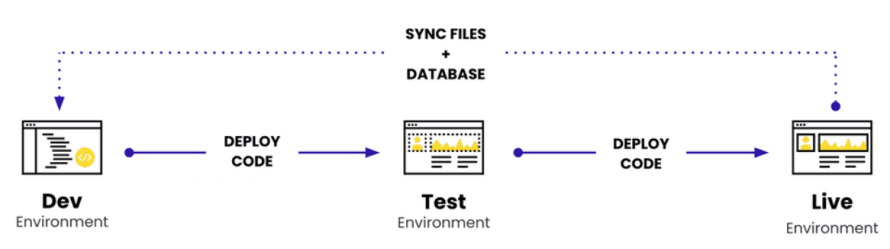
Also, Pantheon's Dev, Test Live workflow gives every site dedicated environments for validating changes before deployment.
Image
The maintenance work that fails silently
The highest-risk maintenance tasks are often the ones that give you a false sense of security. Your site stays online, pages load normally and nothing appears broken, while the systems meant to protect it quietly stop doing their job.
Backups
A successful backup notification doesn't guarantee your site can be restored. Storage fills up, cloud credentials expire and scheduled jobs fail without affecting the front end.
Follow the 3-2-1 backup strategy: three copies of your data, stored on two different media, with one copy kept offsite. Backup frequency should also match business risk. Active WooCommerce stores, membership sites and publishers should be backed up daily, while lower-change brochure sites can usually follow a weekly schedule.
Once a quarter, restore the latest backup to staging and confirm the database loads, media files are present, the admin area works and the most important user workflow still functions. For WooCommerce, that means checking a recent order or test checkout. For lead-generation sites, submit a form and confirm CRM delivery. Record which backup was restored and how long recovery took.
If you’re using Pantheon, you get automated daily backups and one-click restores, which reduce dependence on a plugin-only backup process.
Security
Many compromised WordPress sites still look normal while attackers hide SEO spam, malicious redirects, fake plugins, injected JavaScript, hidden admin users, modified files, rogue cron jobs or database malware.
Popular plugins are not automatically safe. According to Patchstack’s 2026 State of WordPress Security report, 11,334 new vulnerabilities were found across the WordPress ecosystem in 2025. Of those vulnerabilities, 91% were found in plugins, while 1,966 (17%) were considered high severity and likely to be exploited in automated, mass-scale attacks.
Minimum hardening should include 2FA for admins, strong unique passwords, least-privilege roles, monthly user audits, removal of unused plugins and themes, disabled file editing, correct file permissions and XML-RPC disabled when not needed. Some malware can even tamper with scanner files, so high-risk sites should use server-level or external scanning in addition to WordPress plugins.
WP-Cron jobs
WP-Cron usually runs when someone visits the site, not continuously in the background. On a low-traffic site, tasks can be delayed or skipped without any obvious warning. A broken loopback request, plugin conflict, firewall rule, caching setup, or hosting restriction can also stop scheduled jobs from running properly.
The site may still look normal, but backups may be missing, scans may be outdated and scheduled posts may not publish. For important sites, WP-Cron should be monitored or replaced with a real server cron job.
Database and performance tasks worth doing monthly
Performance problems accumulate gradually as content grows, plugins add more data, scheduled tasks multiply, and the database stores information that's no longer needed. Monthly maintenance helps remove that technical debt before it affects users, search rankings or editorial workflows.
Start with database cleanup
WordPress stores post revisions every time you save changes to a post or page, and by default, it places no limit on how many it keeps. It also accumulates auto-drafts, spam and trashed comments, and expired transients – temporary pieces of cached data that plugins and themes create.
Individually, these records are small, but over months or years, they add unnecessary overhead. It's also worth checking for orphaned database tables left behind by uninstalled plugins and optimizing fragmented tables that have become less efficient after frequent updates.
Review what WordPress loads on every page
WordPress automatically loads certain settings, called autoloaded options, every time a visitor requests a page. If plugins store too much data there, every page takes longer to generate, even when that information isn't needed. This is also a good time to identify plugins generating slow database queries, unnecessary background jobs or repeated requests to external services.
Remember, plugin quality matters far more than plugin quantity. A handful of inefficient plugins can have a bigger performance impact than dozens of well-built ones. Tools like Query Monitor can help you identify these bottlenecks.
Verify your caching strategy
Check that page caching, browser caching and object caching are all working as expected, then investigate requests that repeatedly bypass the cache. In many cases, slow pages aren't caused by the database itself but by expensive operations that never benefit from caching.
Measure what your visitors actually experience
Review Core Web Vitals, page load times and your most important user journeys after each maintenance cycle. Look for trends rather than isolated scores. A gradual decline is usually much easier to fix than months of accumulated performance debt.
Like software updates, database cleanup and performance optimizations should be tested on a staging site before being applied to production.
Choosing between DIY and a managed workflow
There's no single "right" way to maintain a WordPress site. The best approach depends on how much risk the site carries, how often it changes and how much downtime your organization can tolerate.
A useful way to evaluate your approach is to ask where your time actually goes.
- DIY maintenance works well when you're managing one or two relatively simple sites and have the technical knowledge to handle updates, backups, testing and troubleshooting yourself.
- Maintenance plugins and automation tools reduce repetitive work by handling tasks such as backups, uptime monitoring, vulnerability alerts and scheduled updates. They save time, but someone still needs to review changes, investigate failures and decide when updates are safe to deploy.
- Managed maintenance services take much of that operational work off your team's plate. Depending on the provider, they may handle updates, security monitoring, backups, performance optimization and emergency support. They're often a good fit for organizations without an in-house WordPress team.
As your environment grows, however, the challenge shifts from completing maintenance tasks to managing a repeatable maintenance workflow. This is where Pantheon takes a different approach.
Rather than treating maintenance as a collection of services, Pantheon builds maintenance into the way WordPress sites are developed and deployed. Depending on the plan, Pantheon includes:
- A dedicated Dev, Test, Live workflow so code can move through controlled environments before production. This is useful for maintenance because plugin updates, PHP changes, database work and performance fixes can be validated before they affect visitors. Pantheon’s docs state that every site comes with identical Dev, Test and Live environments for testing before going live.
- Multidev environments, which allow developers to spin up separate cloud development environments for updates, fixes or feature work without blocking other maintenance tasks.
- Autopilot, which detects available WordPress updates, applies them in an isolated Multidev environment, runs visual regression testing and can pause or route deployment for review when unexpected changes appear. That matters because a successful plugin update can still break layouts, buttons, forms or checkout flows.
- Terminus CLI and WP-CLI support, which lets technical teams script recurring maintenance work, run WordPress commands, clone environments, deploy code and apply upstream updates without relying only on the dashboard.
- New Relic performance monitoring, which gives teams code-level visibility into slow transactions, database queries and performance regressions. This is useful during maintenance because you can confirm whether an update actually improved performance or introduced a slower query path.
Additionally, for agencies and organizations managing multiple WordPress sites, Pantheon extends the same philosophy across an entire portfolio through Upstreams, allowing standardized codebases and shared updates instead of maintaining every site independently. The result is less time spent reacting to failed updates, more consistent deployments and a maintenance process that scales as your WordPress footprint grows.
Build a safer WordPress maintenance workflow with Pantheon
WordPress maintenance becomes much easier when it's built into your development workflow instead of managed through disconnected tools and manual checklists. Testing updates before deployment, verifying backups, monitoring security and standardizing maintenance across every site creates a process that's more predictable and far less prone to human error.
That's the approach Pantheon is built around. With Dev, Test and Live environments, Autopilot, Managed Updates, automated backups, Upstreams and platform-level security features, teams can spend less time reacting to maintenance problems and more time shipping changes with confidence.
Start on Pantheon today and build a maintenance workflow that's designed for reliable updates, safer deployments and WordPress sites that scale without adding operational complexity!
FAQs
What is WordPress maintenance mode?
WordPress maintenance mode is the temporary state visitors may see while updates are running. WordPress can display the default “Briefly unavailable for scheduled maintenance” message during core, plugin or theme updates. You can also use a maintenance mode plugin to show a branded holding page during a launch, redesign or planned downtime.
For routine maintenance, a staging workflow is usually better than taking the live site offline. Updates can be tested privately, then deployed once they’re ready.
Can you enable WordPress maintenance mode without a plugin?
Yes, developers can enable maintenance mode with WP-CLI (using a command like wp maintenance-mode activate) or by creating a .maintenance file in the WordPress installation root that contains a fresh $upgrading timestamp. However, most nontechnical users will find a plugin easier and safer to use.
For production sites, use maintenance mode sparingly. It should be reserved for short planned downtime, not routine updates that can be tested in staging.
Is WordPress experiencing an outage or is my site stuck in maintenance mode?
If your site shows “Briefly unavailable for scheduled maintenance,” WordPress itself probably isn’t down. The update process was likely interrupted before WordPress removed the temporary .maintenance file.
To fix it, confirm the update completed or roll it back safely, then remove the .maintenance file from the site root using SFTP, SSH or your hosting file manager. Afterward, clear caches and check the site before running the update again.