
How WordPress Version Control Actually Works
WordPress version control is the practice of tracking, reviewing and safely deploying changes to a WordPress site so teams can understand what changed, who changed it and how to reverse it when necessary.
The challenge is that a WordPress site is not just a codebase. Themes, plugins and custom code live in the file system, while content, settings, users and much of the site's application state live in the database. Git works well for the first layer but does not automatically solve the second.
But don’t worry, this guide covers everything you need to know about WordPress version control.
Why version control works differently on WordPress
Version control works differently on WordPress, as it does on most dynamic CMSs, because a site’s state is not contained entirely in its codebase. Git can track files, but the website also depends on a database and user-generated files that change independently of those files.
A complete WordPress site is spread across three layers that change independently:
- Code: WordPress core, themes, plugins, custom PHP, JavaScript, CSS and other files that can be placed under Git version control.
- Database: Posts, pages, users, menus, plugin settings, theme settings and other structured data are generally stored in MySQL or MariaDB. WordPress plugins can also create their own tables and store configuration in the database.
- Uploaded files: Images, PDFs, videos and other media normally live in the filesystem rather than the database. WordPress's own backup documentation consequently treats the database and files as separate parts of a complete site backup.
Developers may also use Composer, which records exactly which versions of WordPress or plugins the project needs. Instead of storing every third-party plugin in Git, Git can track files like composer.json and composer.lock, and Composer can install the locked dependency versions during deployment.
However, this means that a Git repository usually does not represent the entire WordPress site. For example, if someone changes a template in the WordPress Site Editor, WordPress saves that change in the database instead of changing the theme file. The database version then overrides the file stored in Git. You can deploy new code successfully and still see an older or different design on the live site.
This is why a reliable WordPress workflow separates code from content rather than trying to force everything into Git. Platforms like Pantheon formalize that distinction by version-controlling code while treating the database and uploaded files as content. Its standard workflow moves code from Dev to Test to Live, while current production content can be copied in the opposite direction for development and testing.
Once those responsibilities are clear, the Git repository becomes much easier to manage.
Setting up Git and a .gitignore that actually works for WordPress
A useful WordPress Git repository should contain the code needed to reproduce the application, while leaving out content, secrets and files generated while the site runs. The exact boundary depends on how the project manages WordPress core, plugins, themes and dependencies.
If the project already has a remote repository, developers normally clone that repository and work from its existing Git history. For a new project, git init creates a local repository that can then be connected to a remote such as GitHub, GitLab or the Git repository provided by a hosting platform.
The more important decision is what Git should not track. That is what .gitignore is for.
The following is a sample .gitignore configuration for a conventional WordPress project:
# User-generated media/wp-content/uploads/
# Local environment configuration/wp-config-local.php.env.env.*
# Dependencies installed during development/builds/node_modules/
# Runtime and development files*.log*.sql*.sql.gz*.zip.DS_Store
This is a starting point, not a universal .gitignore. The right rules depend on the structure of the project. Pantheon's standard WordPress repository, for example, tracks WordPress core and application code but excludes uploads, local configuration and runtime-generated files.
For a more comprehensive example, see the .gitignore used by Pantheon’s WordPress upstream.
Additionally, wp-config.php should not automatically be ignored just because it contains “config” in the filename. The goal is to separate shared configuration that belongs with the application from secrets that belong to a specific environment.
Why code goes up and database goes down
Code generally moves toward production, while the latest database and uploaded files move away from production into development and testing environments because pushing a development database to production can overwrite changes made on the Live site after that database copy was created, including new content, comments and e-commerce orders.
Here’s how it works:
- Code moves up: A developer changes a theme, plugin or other tracked file locally or in Dev, commits it to Git, tests it and progressively deploys it toward Live.
- Content moves down: Editors and visitors continue changing the production site. New posts, page edits, form submissions, comments, orders and changes to Site Editor templates, template parts and many WordPress settings can modify the Live database. Developers copy that current data down when they need realistic content for testing.
Pantheon's workflow follows exactly this pattern. Code progresses Dev → Test → Live, while the Live database and files can be cloned into Test or Dev. In Test, teams can then evaluate the new code against a recent copy of real production content before deployment.
Image
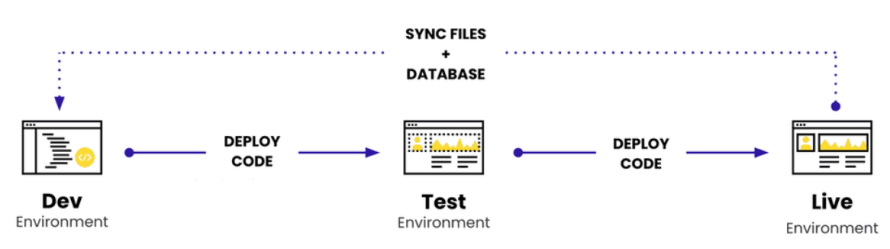
The deployment workflow from local to production
A reliable WordPress deployment workflow moves a defined Git commit through increasingly production-like environments instead of editing the live site directly. In practice, that means developing on a branch, reviewing and testing the change, merging it into the main codebase, testing it with current production content and only then deploying the same code to production.
A typical workflow looks like this:
- Create a feature branch locally: Make the theme, plugin or configuration changes on your workstation, test them locally and commit them to Git. The commit gives the change an identifiable version that can be reviewed and reproduced.
- Push the branch and open a pull or merge request: When using an external GitHub or GitLab repository, open a pull request or merge request to review code quality, automated tests and team approval. On Pantheon, Multidev can give that branch its own isolated environment with separate code, database and files, so developers can test the feature without changing the shared Dev or Live environments.
- Test the branch with realistic content: Pull or clone recent production content into the development environment when needed. This is where WordPress's code/database split matters – you want to test the new code against representative data without pushing a development database over the live one.
- Codify approved Site Editor changes: On high-value, frequently updated production sites, avoid leaving finalized template or template-part changes only in the Site Editor. It is useful for prototyping, but once a change is approved, incorporate it into the theme and commit it to Git so it can be reviewed, tracked and deployed through the same workflow as other code changes.
- Merge approved code into the main branch: Pantheon's external repository integration can connect a GitHub or GitLab repository to a site. An open pull or merge request can receive a Multidev environment and, after the change is merged into main, the code is automatically deployed to Pantheon's Dev environment. Teams using GitHub can use Pantheon's Push to Pantheon Action when they want the deployment step inside a more customized GitHub Actions workflow.
- Promote the code to Test: Pantheon's Dev, Test, Live workflow combines the code being promoted from Dev with a database and files cloned from Live. The team can therefore validate the release against current production content before exposing it to visitors.
- Deploy the tested code to Live: Once the same build has passed technical checks and stakeholder review in Test, it moves to Live. Pantheon makes Test and Live code writable through the Git-based deployment pipeline rather than through routine direct edits, helping keep production aligned with version-controlled code.
Database changes require the same discipline. If new code needs to modify the database, that change should be handled as part of the release process where possible. You generally should not push the entire development database to Live just because the new code needs a schema or configuration change – doing so could overwrite newer production content.
For larger teams, continuous integration/continuous delivery (CI/CD) can automate more of this process, including builds, tests and environment creation.
Rollbacks, backups and why they are not the same thing
A rollback reverses a code change, while a backup lets you recover an earlier state of the site. They solve related problems, but they are not interchangeable.
If a deployment introduces a broken template or plugin change, Git gives you a clean way to undo it. However, reverting code does not restore the WordPress database or uploaded files. If a problem corrupts content, deletes media or makes unwanted database changes, you need a backup instead, which covers a much wider failure scenario.
Pantheon backups, for instance, contain three separate components:
- Code – the version-controlled codebase.
- Database – WordPress content, settings, users and other database data.
- Files – uploaded media and other files stored in the WordPress uploads directory
The safest workflow uses both systems – Git for precise, reviewable code history and backups for when you need to recover data, uploads or the broader site state.
Running version control across many WordPress sites
Version control gets harder when you manage dozens of WordPress sites because the same core, plugin, theme or configuration change may need to reach many sites without erasing the code that makes each site unique.
The scalable approach is to separate shared code from site-specific code.
Pantheon addresses this with Upstreams, a shared Git repository that acts as a reusable foundation for multiple sites. Common themes, plugins, configuration and other organization-wide code can live there, while each individual site keeps its own repository for site-specific changes. Updates to the shared code then become available to the downstream sites without requiring teams to manually recreate the change in every repository.
When you actually want an activity log instead
You need an activity log if you need to know who published a page, changed a plugin setting, created a user, updated a menu or modified content in wp-admin.
An activity log adds accountability for those application-level events, while Git remains the source of truth for version-controlled code.
WordPress has built-in Revisions for posts and pages, which preserve saved content changes and allow editors to compare or restore earlier versions. However, Revisions are focused on content history rather than providing a site-wide audit trail of administrative activity.
The easiest way to choose between the tools is to ask what you are trying to investigate:
- What changed in the code? Check Git.
- Which code reached an environment? Check deployment history.
- Who changed something inside WordPress? Check an activity or audit log.
- What changed in a particular post or page? Check WordPress Revisions.
Pantheon adds another layer of visibility with its workflow logs, which record platform events such as code deployments and Multidev creation, while each environment also has technical log files that help diagnose application and server problems. These are separate from application-level WordPress logs.
Building a WordPress version control workflow that holds up
Reliable WordPress version control comes from treating code, content and site activity as different things. Keep code in Git, move tested changes through controlled environments, bring production content down for testing and use backups and activity logs for the parts Git cannot protect.
Instead of stitching those controls together yourself, Pantheon builds that model into the platform. Every site includes Dev, Test and Live environments, with code moving upward through the deployment pipeline and content moving down for testing. Multidev extends the workflow with isolated environments for parallel development.
Start with Pantheon today to build, test and deploy WordPress with confidence!