
WordPress Migration Plugins and When They Fail
A WordPress migration plugin moves your site from one server to another by copying files, transferring the database, and rewriting URLs so everything points to the right place. It replaces the manual route where you export through phpMyAdmin, move files over FTP, and run search-and-replace by hand.
That manual route hides a real trap. PHP's serialize() function stores text along with its exact character count. Swap an old domain for a new one with a plain find-and-replace, and those counts stop matching. The result is quietly broken theme options, widget settings and plugin configuration, with no error message to warn you.
This guide covers which plugin fits which kind of move, where each one strains under pressure and what to do when your site outgrows plugins altogether.
How the top WordPress migration plugins compare
Migration plugins fall into three architectural types and the type explains most failures.
Local archive plugins build a ZIP of your site on the source server. They need about twice your site's size in free disk space to create that file, which is why they stall on shared hosting with tight storage or short PHP execution limits. All-in-One WP Migration is a popular example in this category, as its free version caps uploads and paywalls larger imports.
Intermediary server plugins route your files through a third-party cloud, sidestepping source-server limits. The trade-off is that your data passes through outside infrastructure and rollback usually isn't offered. Migrate Guru is the one truly free option here, with no file-size cap.
Push/pull plugins sync directionally between two live installs. WP Migrate is built for developer workflows, not full-site moves.
Backup tools like UpdraftPlus and WPvivid can migrate, but restoring elsewhere is a workaround, not their design goal.
Migration plugin comparison at a glance
Prices below are annual list prices from each vendor, checked in July 2026. Several vendors were running heavy promotional discounts at the time of writing, so confirm the live rate before publishing.
Plugin | Architecture | Free tier | *Paid (annual plan) | Rollback | Multisite |
Local archive | 512MB import cap | Unlimited Extension from $69/yr | No | Yes (paid) | |
Local archive | No import size cap | Basic from $99/yr | Yes | Pro tier ($399/yr) and up | |
Intermediary server | Full, up to 200GB, 5 moves/mo | None | No | Entire network only | |
Site-to-site | Backup only | Premium from $70/yr | Yes | Yes (Premium) | |
Push/pull | Database export only | Basic from $49/yr for new users (otherwise $99/yr) | Partial | Premier tier ($219/yr) | |
Local archive | Full, no size cap | Pro from $49/yr | Yes (via restore) | Yes (Pro) | |
Intermediary server | Full, no hard cap (runs on BlogVault) | Free (account required) | N/A | Not yet |
*Original list prices as of July 2026. Sale and promotional pricing not included. Check each vendor's pricing page for the most current rates.
Let’s now take a closer look at some of the most popular WordPress migration plugins.
All-in-One WP Migration
Image
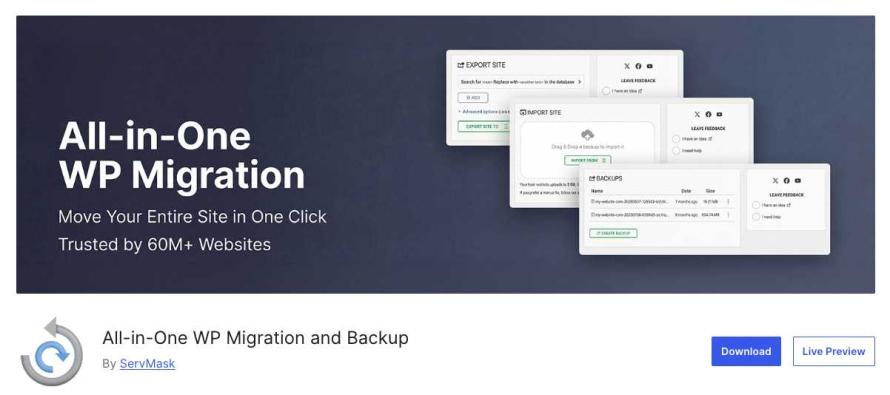
All-in-One WP Migration is the most-installed name on this list, trusted by 60 million sites and holding a 4.5 out of 5 rating on WordPress.org. Its appeal is speed and simplicity. You export your site to a single file, drag it onto the destination, and the plugin handles URLs and serialized data for you. For a beginner moving a small site, few tools feel this easy.
Main features include:
- Beginner-friendly drag-and-drop export and import.
- Automatic URL rewriting and safe serialized-data handling.
- WP-CLI support for command-line migrations.
- Cross-database moves between MySQL, MariaDB and SQLite.
The sticking point is the free tier. Imports are capped at 512MB, which blocks most established sites before they start. Lifting that cap means the Unlimited Extension at around $69/yr, which covers up to 50 sites. There's also no atomic restore and the local-archive design needs free disk space on the source server to build the export file, so tight shared hosting can choke.
All-in-One WP Migration is the friendliest option for a straightforward move of a smaller site. It's recommended for beginners and anyone migrating a site comfortably under 512MB. If your site is larger and you're not ready to pay, look elsewhere.
Duplicator
Image
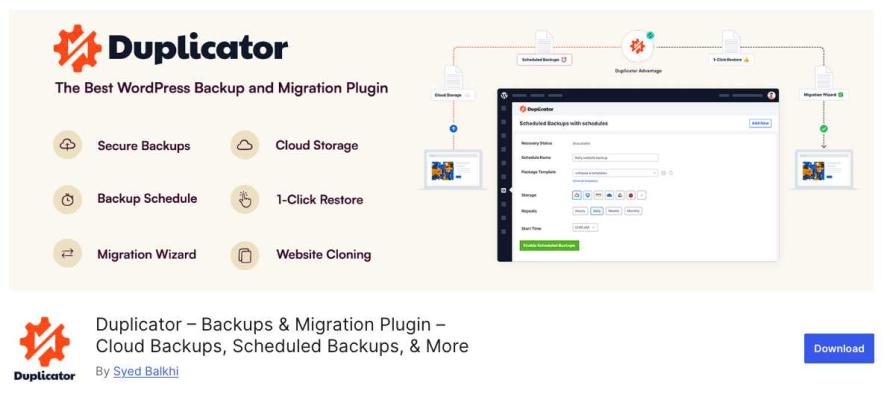
Duplicator is the dependable all-rounder of the group. Its free version moves standard sites with no early size cap, which already puts it ahead of plugins that make you pay before you can finish a restore. It works well for one-off moves and for teams who want backup and migration in a single tool.
Main features include:
- Free version handles standard migrations without an early size cap.
- Paid plans run from $99/yr for 2 sites up to $599/yr for 100 sites.
- Multisite support starts at the Pro tier.
- Recovery points give you a clean restore if something goes wrong.
- The installer can build a site on a server that has no WordPress installed yet, which is unique among these plugins.
The main limitation is architecture. Duplicator builds its archive on your own server, so shared hosting with tight storage or short execution limits can still cause a migration to stall or fail.
Overall, Duplicator is a solid, well-rounded choice that covers most standard moves without fuss. It suits developers handling individual client migrations and small teams who want one tool for both backups and transfers, as long as the source server has enough room to build the archive.
Migrate Guru
Image

Migrate Guru is the honest answer for a free move of a large site. There's no premium tier and no size paywall, and it runs the whole transfer on BlogVault's external servers instead of your own. That design keeps the load off your source site, which is why it holds a 4.9 out of 5 rating on WordPress.org.
Main features include:
- Entirely free with no premium tier or paid add-ons.
- Handles sites up to 200GB through BlogVault's servers.
- Moves multisite as a full network migration.
- Bypasses source-server constraints that cause other tools to time out.
There are real trade-offs. Migrate Guru can't extract an individual subsite from a network, offers no localhost support and gives you no built-in way to undo a move once it starts. It also routes your site data through BlogVault's infrastructure, which creates a data processing relationship worth reviewing for EU-regulated sites. And because the transfer happens off-site, a failure partway through leaves you with no automated rollback.
Bottom line, Migrate Guru is hard to beat when the priority is moving a large site for free without crashing the source server. It's recommended for site owners on constrained shared hosting, budget-conscious teams and anyone facing a host-to-host move who doesn't need subsite control or a built-in rollback path.
UpdraftPlus
Image
UpdraftPlus is a backup plugin first and a migration tool second, with more than 3 million active installs behind it. That order matters. If you already run it for scheduled backups, turning one of those backups into a move to a new host is a short extra step rather than a new tool to learn.
Main features include:
- Migration through the Migrator add-on, included in Premium.
- Premium pricing from $70/yr for 2 sites up to $399/yr for unlimited sites.
- Atomic restore, so a failed migration reverts the site instead of leaving it half-written.
- Multisite support.
The chief drawback is that migration isn't the free-version job. The core plugin backs up and restores, but moving to a new host needs Premium or the Migrator add-on, so there's a cost to unlock the feature this article is about. The interface is also dense and dated, which can slow a first-time user down.
UpdraftPlus is a strong pick when backup is your main need and migration is the occasional bonus. It's recommended for site owners and teams already invested in its backup routine who want a safe, revert-friendly move without adding another plugin to the stack.
WP Migrate
Image

WP Migrate gets miscast a lot. People find it on migration lists and assume it's a general site-mover, but it's built for a narrower job. It's a developer tool for syncing content between two connected WordPress installs, closer in spirit to a code editor than to a one-click migrator. If your work involves pushing a local build up to staging or pulling a live database down to your machine, this is the plugin that fits.
Main features include:
- Directional push and pull sync between two connected installs.
- Selective transfer of the database, media and theme and plugin files.
- WP-CLI integration for scripted, repeatable workflows.
- Saved profiles so recurring syncs run the same way every time.
- List pricing for new users from $49/yr (1 site, database only) up to $219/yr (unlimited sites, all features).
The design is also the drawback for most readers. WP Migrate isn't meant for a single full-site move to a new host, so reaching for it to shift a 2GB WooCommerce store is the wrong call. Licenses are sold per developer rather than per site and the higher tiers unlock media and file syncing that the entry plan leaves out. Note too that the plugin is now owned by WP Engine, following its acquisition of Delicious Brains.
Overall, WP Migrate is the right tool for developers running frequent syncs between local, staging and production and the wrong tool for a one-off host move. It's recommended for development teams who need precise, repeatable control over what moves between environments.
WPvivid
Image
WPvivid bundles backup, migration and staging into a single free plugin, which makes it a budget-friendly alternative to Duplicator for smaller sites. The free version does real work rather than acting as a locked demo and its no-cap approach to file size stands out at this price point.
Main features include:
- Free migration, backup and staging in one plugin.
- No file-size cap on the free tier.
- Restore from a backup if a migration runs into trouble.
- Pro plans from $49/yr for teams that need multisite or white-label features.
The honest caveat is evidence. WPvivid has less independent testing behind it than the bigger names here, so there's less third-party data to lean on when judging how it holds up on large or unusual sites.
Nevertheless, WPvivid is a capable, low-cost option that covers the essentials without paywalling the basics. It's recommended for owners of smaller sites who want backup, migration and staging together for free, with a cheap upgrade path if their needs grow.
Pantheon Migrations
Image

Pantheon Migrations is the free tool for moving a WordPress site onto Pantheon. Built by BlogVault, it runs the transfer on a hosted background service rather than your own server, so you can paste in your credentials, click migrate, close the browser and wait for the email that says it's done. It holds a 5 out of 5 rating on WordPress.org and one reviewer reports moving a site with more than 10GB of files without a hitch.
Main features include:
- Free to use with a Pantheon account, with no file-size cap.
- Runs on a hosted background service, so the browser can be closed mid-migration.
- Email notification when the transfer finishes.
- Uses an intermediary-server model, the same approach as Migrate Guru.
The scope is the thing to understand. This plugin moves sites to Pantheon and nowhere else, so it isn't a general-purpose mover. It doesn't support imports from WordPress.com and multisite support is still in the works. The plugin itself is free, but taking a site live on Pantheon means adding a Site Plan, which starts at $500/yr for the Basic tier.
Essentially, Pantheon Migrations is the smoothest path onto Pantheon. It's recommended for teams that have already chosen Pantheon as their destination and want a hands-off transfer they can start and walk away from.
How do I choose the right WordPress migration plugin?
The right choice comes down to four questions. How big is the site, what's it built on, how often will you move it, and how comfortable are you with the technical side?
Start with size, since that rules options in or out fastest:
- Under 512MB works fine on All-in-One WP Migration's free tier.
- Between 1GB and 5GB on decent hosting suits Duplicator or UpdraftPlus.
- Over 5GB, or any site on constrained hosting, points to Migrate Guru.
- Over 10GB, use Migrate Guru but pair it with an independent backup first, since there's no rollback if the transfer fails.
Workflow matters just as much. For recurring syncs between a local build and a live site, WP Migrate is the fit. For a one-time host switch, Duplicator, All-in-One, UpdraftPlus and Migrate Guru all handle it.
Running a WooCommerce store adds a few must-do checks. After the move, confirm your payment gateway API keys, which are tied to your domain, update any webhook URLs and run a small test transaction. Turn on maintenance mode on the old store before the DNS cutover so orders don't land on the old site while changes propagate.
Multisite narrows the field. Duplicator (Pro tier), All-in-One (paid), UpdraftPlus and Migrate Guru all move full networks, though Migrate Guru handles the whole network only. WP Migrate supports multisite at its top Premier tier.
If you're brand new to this, All-in-One's paid version or Duplicator's free version keep a smaller move simple. And if you're an agency moving whole fleets of sites, a platform-level migration service is usually steadier than any single plugin, which the next section gets into.
Before and after migration checklists
A clean migration is mostly about the work you do on either side of the actual move. Here's what to handle before you start and what to confirm once the files land.
Before migration:
- Make a full independent backup of files and database, kept separate from whatever the migration plugin creates.
- Delete unused themes, plugins and spam comments so you move a lean site, not old clutter.
- Confirm the PHP version matches between the source and the destination.
- Lower your DNS TTL to 300 seconds at least 48 hours before the cutover.
- Write down any custom server settings, including cron jobs, .htaccess rules and object caching.
After migration:
- Flush permalinks, clear every cache (server, plugin and CDN) and check that SSL is working.
- Confirm serialized data survived by spot-checking theme options and widget settings.
- Send a test through contact forms and order emails to verify outbound mail.
- Watch Search Console for crawl errors across the first 30 days.
Running WooCommerce means three extra steps. Re-authenticate your payment gateway API keys, which are often tied to your domain. Update your webhook URLs. Then run a test transaction to confirm checkout works end to end.
One approach removes most of the risk. A Dev-Test-Live workflow like Pantheon's lets you build and check the migrated site on a test environment first, so you only point your domain at it once everything already works.
When to skip the plugin and use a managed migration
Plugins cover most moves, but there's a point where they become the wrong tool. Once a migration gets big or complex enough, a managed service run by people who do this daily is the steadier bet.
Reach for a managed migration when any of these apply:
- The site is over 100GB.
- You're moving a multisite network with dozens of subsites.
- You're migrating a fleet of 50 or more sites at once.
- Downtime would hit revenue directly.
WP Engine, Kinsta and Pantheon all offer migration services for exactly these cases. Pantheon's managed migration team handles enterprise-scale consolidations, including Pernod Ricard, which runs more than 270 WordPress sites on the platform managed by a two-person team.
If Pantheon is your destination, the free migration plugin covers self-serve moves and live hosting starts at $500/yr. Before you buy any plugin license, it's worth checking whether your destination host already includes a free migration service. Many do, and that can save you the cost of the plugin entirely.
Planning your next migration
If one of the plugins above matched your site's size, stack and workflow, you're most of the way there. Run through the pre-migration checklist, so the move will hold few surprises. If your site is too large or too tangled for a plugin to handle safely, a managed service is the smarter route. Pantheon's managed migration team and free migration plugin are both solid places to start.
Remember to take your own independent backup before you begin, no matter which path you pick, because no plugin replaces a copy you control.
Ready to move your site onto a platform built to keep it running? Start free with Pantheon and migrate your first site today.
WordPress migration FAQ
How do I migrate a WordPress site over 100GB?
Use an intermediary-server plugin that runs the transfer off your own server. Migrate Guru is free and handles sites up to 200GB, which sidesteps the upload limits that stop local-archive tools. Above 200GB, a managed migration service is the safer choice, since it moves data at the infrastructure level.
Are there special steps for a multisite network?
Yes. Duplicator (Pro tier), All-in-One (paid), UpdraftPlus and Migrate Guru all move multisite, though Migrate Guru handles the full network only and none can pull out a single subsite. After the transfer, check subdomain or subdirectory routing, confirm domain mapping and verify that per-site plugins are still active.
Can backup plugins like UpdraftPlus handle migration?
Yes. UpdraftPlus Premium, from $70/yr for 2 sites, adds migration through its Migrator add-on. The free version handles backups, but a site-to-site move needs Premium.
Should I use a host's migration service or a plugin?
For a site under 10GB on stable hosting, a plugin gives you speed and control. For anything more demanding, such as a 100GB+ site, a multisite network, or a WooCommerce store with custom integrations, a host's service lowers the risk.